
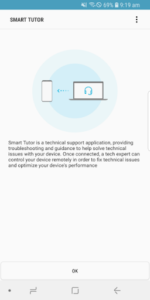
Smart Tutor for SAMSUNG Mobile is an app designed to facilitate remote technical support and diagnosis for Samsung Android smartphones and tablets. It enables users to connect with a tech expert who can remotely access their device to help optimize performance and provide functional advice. This app is primarily used for addressing inquiries related to device menus and features, receiving advice on new functionalities, resolving display settings and errors, handling software upgrade and app update questions, and conducting a general device status diagnosis.
Initiating Remote Support
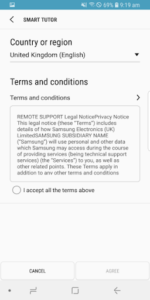
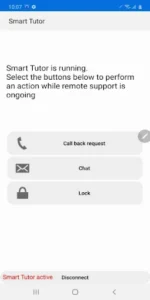
To use Smart Tutor, users first download and install the app on their Android device. The next step involves making a phone call to the SAMSUNG Contact Center. After agreeing to the displayed Terms and Conditions, the relevant contact center phone number for the user’s country will be shown. Once connected with a tech expert, the user will be provided with a unique 6-digit connection code to enter into the app, establishing the remote support session. Users can terminate the connection at any time by tapping the Disconnect option within the app.
Key Support Features
During a remote support session, the app provides several functionalities to assist the tech expert. These include Screen Share, which allows the expert to view the device screen, and Chat for direct communication. Additionally, Screen Lock and Application Lock features are available, which can be used to manage access during the support session.
Privacy Safeguards
The app incorporates specific features to protect user privacy. It restricts a tech expert from accessing applications that typically contain private information, such as the Gallery, Message app, and email client. This measure is designed to prevent the exposure of personal data during remote diagnosis.
System Requirements and Connectivity
Smart Tutor requires an Android operating system above Android 6 to function. It does not support Google Experience Devices, such as the Galaxy Nexus. Users should be aware that if connecting via a 3G or 4G network, charges may apply according to their data plan agreement with their network operator. For free support, it is recommended to ensure Wi-Fi availability before establishing a connection.












Write a review